 Kernhue
WhatFont alternative (2026): a free font finder that works in current Chrome
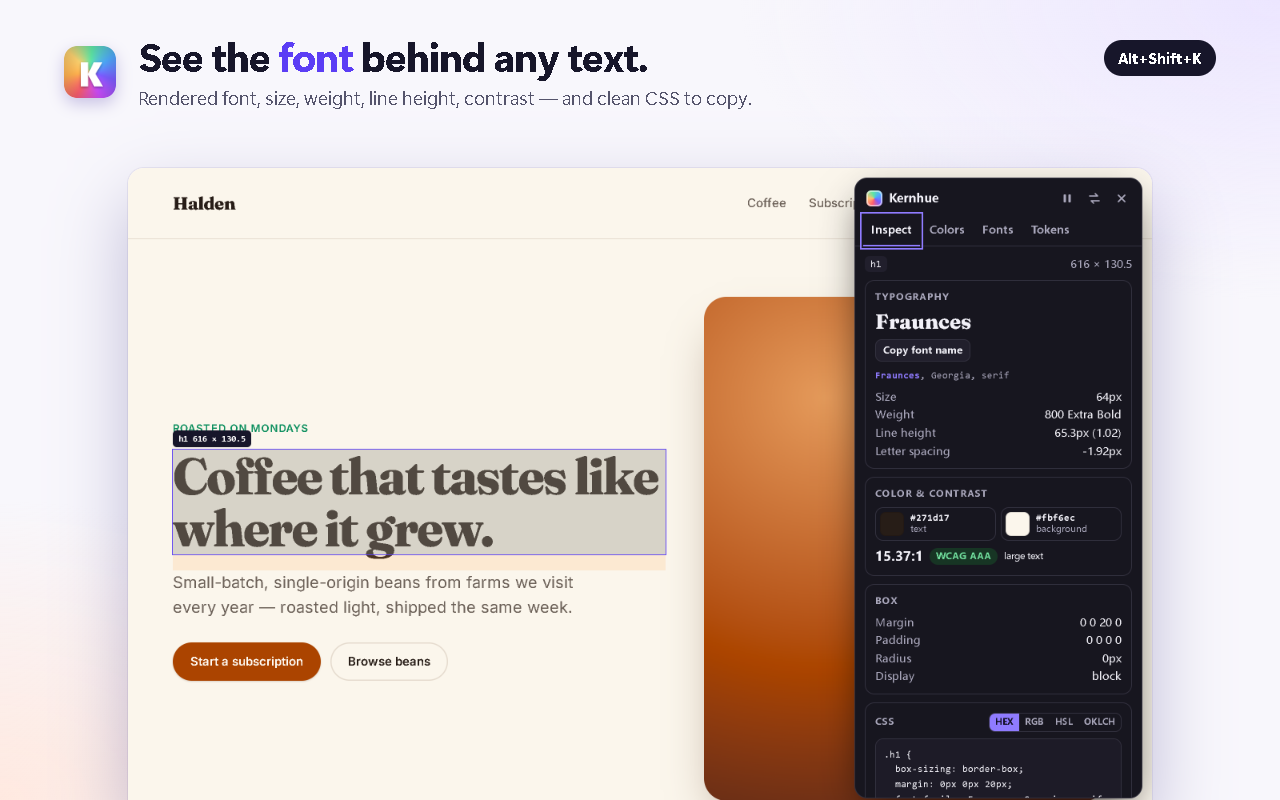
Short answer: if WhatFont no longer works for you, Kernhue is a free Chrome extension that does the same job — hover any text to see its font, size, weight and line height — and adds a color picker, CSS copy and design-token export. It runs only when you click it and works on localhost and local files.
Why people look for a WhatFont alternative
WhatFont is one of the best-known font finders: its Chrome Web Store listing shows 3,000,000 users. The same listing shows the last update on March 4, 2024 (version 3.2.0), and recent reviews mention it stopping after Chrome updates and not working on local HTML files. If that’s you, any of the tools below is worth a try.
WhatFont vs Kernhue
| WhatFont | Kernhue | |
|---|---|---|
| Hover to identify a font | Yes | Yes — highlights the family that actually renders |
| Size, weight, line height | Yes (click for details) | Yes, plus letter spacing |
| Color picker & page palette | Shows text color | Eyedropper, page palette, HEX/RGB/HSL/OKLCH |
| Copy CSS of an element | — | Yes, defaults stripped and shorthands collapsed |
| WCAG contrast | — | Yes |
| Fonts list for the whole page | — | Yes, with share of text and type styles |
| Design-token export | — | CSS variables, Tailwind v4/v3, W3C JSON, DESIGN.md |
| Local files & localhost | One recent review reports local files don’t work | Yes (local files after one Chrome switch) |
| Last updated | March 4, 2024 | New in 2026 (Manifest V3) |
| Price | Free | Free; Pro adds AI token naming |
Other alternatives worth knowing
- Fonts Ninja — font identification focused on type discovery, with an optional paid app to try fonts.
- ColorZilla — the classic color picker and gradient generator, if you only need colors.
- VisBug — an open-source design tool for inspecting and nudging layouts directly on the page.
- Chrome DevTools — Computed tab → “Rendered Fonts” shows the font in use for a selected element, without any extension.
How to switch in one minute
- Install Kernhue from the Chrome Web Store (coming soon) and pin its icon.
- Open any page and press Alt+Shift+K.
- Hover text to see the font. Click to pin it, then Copy font name or Copy CSS.
Questions
Is WhatFont still maintained?
WhatFont’s Chrome Web Store listing shows version 3.2.0, last updated March 4, 2024 (checked 2026-10-06; store listing). Some recent reviews there report it stopped working after Chrome updates or on local HTML files.
What is the best free alternative to WhatFont?
Kernhue covers what WhatFont does — hover to identify a font, click for details — and adds a color picker, page palette, CSS copy, a contrast check and design-token export, all free. It also works on local files and localhost.
Does Kernhue tell me which font in the stack is actually used?
Yes. Kernhue checks each family in the CSS font-family stack and highlights the one that is rendering; families that aren’t available are crossed out.
Can I use the font I identified?
Identifying a font doesn’t give you a license to use it. Check the font’s license (many web fonts are on Google Fonts; others must be bought from the foundry).
Try Kernhue
Kernhue is a font finder, color picker and CSS inspector for Chrome. Hover any text to see the font that is actually rendering, pick colors in HEX, RGB, HSL or OKLCH, copy clean CSS for any element, and export a page’s colors, type scale and spacing as CSS variables, Tailwind or design-token JSON.
Coming soon to the Chrome Web Store